Saturday, 19 November 2011

Create Printer Friendly Blog Pages with Simple CSS


eco printer friendly blog
Jay White of DumbLittleMan.com writes - "Have you found a good way to allow readers to print individual post content without all of the sidebars, ads and headings messing up the print format?"
Extra stuff like logos, forms, navigation links, advertising, blogrolls, flash widgets, etc may look good when your blog page is viewed inside the web browser but these elements are almost useless for people who want to print out web pages on paper.
How to Create Printer Friendly Web Pages with a Print Style Sheet
With little effort, you can turn your blog into a printer friendly and environment friendly website (since readers will consume less ink and paper when printing your articles).
Step 1: Create a new CSS File (print.css) and add the following lines:
body {font-family: arial,helvetica,sans; font-size: 13px; background:fff; color:000;}
// Black Text on White Background
a,a:visited,a:link {color:#000; text-decoration:none} 
// Do no underline links
.noprint {display:none} // This will do the magic
Step 2: Open the HTML source of your main blog template and enclose everything other than the content (like the sidebars, ad blocks, header logo, footers, etc) inside the following <span> tag
<span class="noprint"> ..... </span>
You are instructing the browser not to print anything that appears inside the above tag.
Step 3: Add the following line inside the <HEAD> tag of your blog template
<link rel="stylesheet" media="handheld,print" href="print.css" />
That's it. To see how this works, click here and go to File->Print Preview.
This technique is not just effective for printed version of your web pages but even for PDFs - if someone prints your blog as a PDF document, they'll see a clean version of the article without the extra bells-n-whistles. See - "Print to PDF Button for Blogs"

Promoting a Blog through Facebook Advertising and Google Adwords


advertisingI recently experimented with running a 7-day advertising campaign for this blog on Facebook as well as the Google network using Adwords.
This was my second attempt and the results are pretty encouraging.
I mainly targeted the 20-35 age group on Facebook who are based in India with some level of education and any marital status. In the case of Google Adwords, the ads were only shown to Internet users in India where were looking for technology related websites.
First, here are the individual performance reports for AdWords and Facebook advertising:
Google Adwords (Ads were shown on Google search and sites that use AdSense)
google-search
Facebook Advertising (with a daily advertising budget of $5)
facebook-advertising
If you compare these tables, Facebook can deliver tons of impressions for a small amount of money but the average cost of visitor acquisition (CPC) is higher for Facebook than Google Adwords.
Now Google Analytics tells me that a visitor from either of these advertising networks spent anywhere between 2-3 minutes on the page which is not bad at all.  The bounce rate for visitors from Google were nearly the same as the site average but in the case of Facebook, the bounce rate was 25% less than the site average.
google-analytics
This was just an experiment with a very low advertising budget but looking at the results, these advertising options are definitely worth exploring as they deliver if you can target the right crowd.
If you have never tried advertising with Facebook, it even allows you to target employees of a particular company or students of a particular college. For example, you may set your ad to appear only on the terminals of Google employees or students of IITs and IIMs.

Embed Chat in Your Blog: Interact with Site Visitors in Real Time


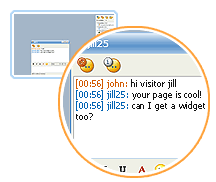
Blog Chat EmbeddedGabbly, Meebo Me and Stickam are three very popular IM services that let you embed live chat window plugins in your web pages or blog. So you can either chat with people while they are on your site or even the site visitors can chat among themselves.

Now since these blog chat addons are done in Macromedia Flash, visitors need not download or install anything in order to get started. As soon as they open your blog in any web browser, they are ready to converse with either you or other blog readers.

Why should I embed Live chat in my blog ?

Here are some reasons:

» It could be a great opportunity to get instant feedback about your blog from site visitors. A lot of your site fans may want to send you comments but they are sometimes too lazyto write you an email or even dropping a line in the comment section. But with these services, the visitor can start a conversation with you by simply typing in the text area - they can even choose to remain anonymous.

» A lot of service oriented and product websites have a "Talk to our representative" or "Live Support" button where visitors can speak with their support staff online without dialing any number or writing emails. If you also need to provide a similar customer support service on your blog or web page but don't have big budget, these IM services may be just right for you. Business online with zero setup cost.

» If you place Meebo Me in your site, it will show you the number of visitors who are currently visiting your site. The visitors will automatically appear as guest inside the meebo chat window even when they don't plan to chat. No web analytics program like Statcounter or sitemeter would ever be able to tell you how many people were on your site at 11:32 am.

I thought they would slow down my web page ?

Though all the three services download a swf file on the client computer, the footprint is very small and the visitors may not even notice any change in the site loading time. However, if you are still not comfortable with integrating chat windows in your main web pages, you can place them in a pop-up window which will only open when the visitor clicks on the hyperlink.

Gabbly vs Meebome vs Stickam - Which is better ?

It really depends on what you want to do with the service like do want to have control over the size of the widget, want group discussion, video chatting or just text chatting. Here's a quick review of the three services:

Meebo Me has a very pleasing interface and comes in three standard sizes so you can either fit it easily in the blog sidebar, main post or even in a popup. You will have to login into your meebo account so when someone visits your site, they will be able to instantly communicate with you through the meebome widget. [Thanks, Shahrzaad Parekh]

Stickam lets you do a live video chat with site visitors. The service is miles ahead of competition in terms of features and customization options. You can add your own skins, profile picture or even change the background color. Other than text chat, Stickam lets you share videos, photos, music within the player. Robin Good has a more detailedreview of Stickam when it was in the beta phase.

Gabbly lets you choose any custom height and width of the chat window so you can customize it as per your blog layout. Gabbly is for group chat so everyone who visits your page will then be able to chat with one another. The conversation can be subscribed to via rss feeds [gabbly chat for this blog]

Distribute Your Blog Through Nokia’s Ovi Store


mobile os marketshare
While Nokia gets little love from tech pundits in the west, Symbian powered mobile phones still command the highest market share worldwide and this number is significantly higher in Asia, South America and African countries.
Nokia’s Ovi Store has around 140 million users worldwide and thus, if you are content creator, the store presents an excellent opportunity for you to showcase your stuff to such a large audience in the form of an app.
Build an app in 60 seconds
If you have ever tried building an app for your blog for distribution through Apple’s App store, you know the drill. First, it requires you to have the technical know-how, you need an Apple developer account and, if you are writing the app on your own, you also need to have a Mac.
With Nokia’s Ovi Store, a person with no programming skills can build an app in minutes through an online wizard – all they need is a blog with an RSS feed. There’s no fees involved and your Ovi App created through the wizard can be downloaded on almost all Nokia devices except for some of the recent ones.
Nokia Ovi App Wizard
The wizard offers limited customization options -  you may change the background and text colors but nothing beyond that. If you have more than one feed, you may publish them all in a single app without having to merge them separately.
To give you an example, I created this mobile app for Digital Inspiration using the wizard, it got approved by the Ovi QA team in about a day (they need to confirm that you own the content) and now anyone, anywhere may download the app on their mobile through the Ovi Store.
How is the app any different from directly reading an RSS feed on the phone? Well, the biggest advantage is that the Ovi app optimizes your blog images for the mobile screen and thus the entries should load a lot quicker.
Also, when people have your blog installed as an app on the home screen of their mobiles, they’re probably going to check it more frequently.

Monitor your Blog Performance on the Social Web


Want to know how your blog is doing on social sites like Twitter and Facebook?
Simply go to twitter.labnol.org/analytics, type the feed address of your blog (or any other web site that offers an RSS feed), and hit the 'go' button.
The tool will tell you exactly how many times your most recent stories have been shared on Twitter and Facebook.
social media analytics

Add Language Translation Flags To Your Blog in One Easy Step; Reach Non-English Speaking Readers


What's you first reaction when you land on a website that's written in Russian, Chinese or Japanese ? Most of us would hunt for that English language translation flag and if that's missing, we will copy-paste the site address in Google Translate website or Yahoo Babelfish to convert the site content to English.

Way too much effort. Now let's reverse the roles and say somebody from China or Japan visits your blog (written in English). The foreign visitor will have exactly the same problems that you faced when you were visiting that non-English website above.

Since more than 65% of web users speak a language other than English, it is essential that you provide language translation features in your blog so that you don't miss the non-English speaking traffic. 

So when an Arabic visitor passes your English blog, he or she can just click the Arab flag to translate the website into his native language - That way you don't loose a visitor plus he could even subscribe if the content is good even if written in another language.

Here's a quick tutorial to add language translation to your blog. You can be any blogging platform including Blogger, Typepad, Wordpress that provides access to templates. The visitor will see nine country flags corresponding to German, Chinese, Japanese, Korean, Arabic, French, Portuguese, Spanish and Italian languages.

        
All you have to do is copy-paste the following lines of Javascript code anywhere in your blog template.

<form action="http://www.google.com/translate" >

<script language="JavaScript">
<!--
document.write ("<input name=u value="+location.href+" type=hidden>")
// -->
</script>

<input name="hl" value="en" type="hidden">

<input name="ie" value="UTF8" type="hidden">

<input name="langpair" value="" type="hidden">

<input name="langpair" value="en|fr" title="French" src= "http://photos1.blogger.com/img/43/1633/320/13539949_e76af75976.jpg" onclick="this.form.langpair.value=this.value" height="20" type="image" width="30">

<input name="langpair" value="en|de" title="German" src= "http://photos1.blogger.com/img/43/1633/320/13539933_041ca1eda2.jpg" onclick="this.form.langpair.value=this.value" height="20" type="image" width="30">

<input name="langpair" value="en|it" title="Italian" src= "http://photos1.blogger.com/img/43/1633/320/13539953_0384ccecf9.jpg" onclick="this.form.langpair.value=this.value" height="20" type="image" width="30">

<input name="langpair" value="en|pt" title="Portuguese" src= "http://photos1.blogger.com/img/43/1633/320/13539966_0d09b410b5.jpg" onclick="this.form.langpair.value=this.value" height="20" type="image" width="30">

<input name="langpair" value="en|es" title="Spanish" src= "http://photos1.blogger.com/img/43/1633/320/13539946_2fabed0dbf.jpg" onclick="this.form.langpair.value=this.value" height="20" type="image" width="30">

<input name="langpair" value="en|ja" title="Japanese" src= "http://photos1.blogger.com/img/43/1633/320/13539955_925e6683c8.jpg" onclick="this.form.langpair.value=this.value" height="20" type="image" width="30">

<input name="langpair" value="en|ko" title="Korean" src= "http://photos1.blogger.com/img/43/1633/320/13539958_3c3b482c95.jpg" onclick="this.form.langpair.value=this.value" height="20" type="image" width="30">

<input name="langpair" value="en|zh-CN" title="Chinese Simplified" src= "http://photos1.blogger.com/img/43/1633/320/14324441_5ca5ce3423.jpg" onclick="this.form.langpair.value=this.value" height="20" type="image" width="30">

<input name="langpair2" value="en|ar" title="Arabic" src= "http://photos1.blogger.com/blogger/3709/485/1600/arabic-flag.gif" onclick="this.form.langpair.value=this.value" height="20" type="image" width="30" />
</form>


Actually the above tutorial is an enhanced version of our previous Language Translation Tutorial which was a bit out of date since Yahoo acquired Babelfish and WorldLingo changed their translation URLs. 

Though the machine translation powered by Systran is generally not as correct as the service offered by professional translators, not all of us can afford an human powered translation. Plus the non-English visitor can alway connect the dots and make some meaningful sense of your content.

There's no translation support for Urdu, Russian, Hindi, Telugu or other Indian languages.

How To Make A Blog In Blogger.com Using Your Gmail Google Account


  • AT FIST YOU WANT GMAIL ACCOUNT 


Backup your WordPress Blog to Dropbox


wordpress to dropbox
wpTimeMachine is another useful WordPress plugin that makes it easy for you to backup your entire WordPress blog to your Dropbox account. It can perform an automatic backup of your WordPress MySQL database, themes, plug-ins and all the other files and images that you may uploaded to your WordPress folder.
After you have installed the plugin, just enter your Dropbox credentials and hit the Generate Archive button. Within minutes (the time may vary depending upon the size of your WordPress site), you should see the backups in your Dropbox folder.
How to Trigger Backups?
You may either choose to perform backups manually, as in the case above, or you can setup a cron job to backup your WordPress site at preset schedules automatically.
The plug-in can also be configured such that backups are triggered as soon as you publish a new post but use it with caution as it may put lot of extra strain of your server.
Also, you may have uploading issues if the wp-content folder is too large because the Dropbox API won’t accept files that are larger than 300MB. 

Create a Back Up of your Tumblr Blog


tumblrUnlike WordPress or Blogger, Tumblr does not have an official export feature yet, so moving your Tumblr blog to a different blogging platform or taking a backup of the entire blog is rather difficult.
Enter Tumble-log Backup – it's an online tool that will backup all your Tumblr posts into a single HTML file. You only need to give your tumblr blog name and Tumble-log Backup tool will do the rest.
backup tumblr blogs
Tumblr Backup will save all text, photos, audio and video codes.
Since the backup tool doesn't require a password, you may use it to save an offline copy of virtually any public tumblr blog. And  it also works with tumblr micro-blogs that are self-hosted on custom domains like xzy.com instead of xyz.tumblr.com.

Tumblr Blogs Can No Longer Import RSS Feeds


Tumblr RSS Import
Maybe this is more ammunition for people who think that RSS is dead.
Since its early days, Tumblr has offered a useful import feed feature to help you bring content from other sites – like Flickr, Twitter, YouTube, Facebook, Blogger, etc. – into your main Tumblr blog. Technically, you could import content from just about any external site into Tumblr as long as there was an RSS feed available.
Unfortunately, as @Shripriya first noticed, Tumblr has quietly dropped support for importing RSS feeds into their system. Tumblr’s support site still has a page on how to use Import feed but the feature itself has been removed, thus denying you the ability to use Tumblr has a lifestreaming service.
The last auto-fetch request into my Tumblr blog was made during the first week of June and that may be the date when they dropped support for RSS imports (you can still export your Tumblr blog as an RSS feed though).
I am little surprised at Tumblr’s approach here but that doesn’t mean you can’t bring your external content into Tumblr – they do offer a simple API that can write anything, including RSS feeds, to a Tumblr blog but you’ll have to take the help of a developer to get that thing working for your blog.

Add Facebook Plugins to your Blog – Quick Guide


facebookIf you have tried adding Facebook plugins to your website before but then skipped thinking the implementation was getting too geeky for you, I suggest that you explore the option again.
That’s because Facebook has now made it extremely easy for anyone to integrate Facebook social elements into their website or blog – just copy-paste a single line of HTML code and your site will instantly become Facebook-ready.
It all starts with a Like button that you need to add at the bottom of every post (or any other location) on your blog. Here’s the code:
If you are using WordPress software, open the single.php file and add the following code. You may change the height and width of the IFRAME as per your blog design.
<iframe src="http://www.facebook.com/plugins/like.php?href=<?php echo urlencode(get_permalink()); ?>&amp;layout=standard&amp;show-faces=true&amp;width=530&amp;height=60&amp;action=like&amp;colorscheme=light" scrolling="no" frameborder="0" allowTransparency="true" style="border:none; overflow:hidden; width:530px; height:60px"></iframe>
If you are using the classic template of Blogger, the code is:
<iframe src="http://www.facebook.com/plugins/like.php?href=<$BlogItemPermalinkUrl$>&amp;layout=standard&amp;show-faces=true&amp;width=530&amp;height=60&amp;action=like&amp;colorscheme=light" scrolling="no" frameborder="0" allowTransparency="true" style="border:none; overflow:hidden; width:530px; height:60px"></iframe>
And for the modern version of Blogger, the code is courtesy DevFuel.
<iframe expr:src='"http://www.facebook.com/plugins/like.php?href=" + data:post.url + "&amp;layout=standard&amp;show-faces=true&amp;width=530&amp;height=60&amp;action=like&amp;colorscheme=light"' frameborder='0' scrolling='no' style='border:none; overflow:hidden; width:530px; height:60px' allowTransparency='true'></iframe>
You need to edit the HTML of your Blogger template and insert the above line somewhere after the post template – search for "<b:includable id='post' var='post'>".
A reader on your site, who is logged into her Facebook account, can now give your story a “Thumbs up” by simply clicking this Like button. She will also have to option to publish a snippet of your blog story on to her Facebook profile.
Then you have the Activity widget that shows in near real-time how people are interacting with your stories. If the user is logged into Facebook, the activity widget will show the activity of her friends on your web site else it’ll show everyone’s activity.
However, the most exciting social plugin for Facebook in the new recommendations engine. It shows a list of most popular stories on your blog as determined by the count of Facebook users who have “liked” that story.
You can see both the Activity and Recommendations widget in action below.

Now that you have added all the necessary Facebook social widgets on your blog, it’s time for some reports.
There are tons of social sharing widgets around but Facebook is probably the only one that will give detailed and accurate demographics of people who are liking or sharing your content on the web.
Verify Domain in FacebookTo get started, go to facebook/insights and add your domain name to Facebook.
You basically need to verify that you are the actual owner of a domain and you can do this by simply adding a unique HTML META tag to your blog header.
Facebook will check the tag in your blog and once it’s verified, you can link the reports to either your Facebook profile or any Facebook page, if you own one.
Once everything is in place, you can revisit the Facebook Insights page to get detailed sharing stats of your blog pages. It will even tell you the top countries / cities of users who are interacting with your stories including the demographics.
facebook_share
demographics
If you have a forum or a blog site that requires registration, you may also explore the Sign-on widget that will let user registers on your site using their Facebook ID. See that thing in action on digitalinspiration.com.